
🔍 This guide comes in two formats: text (easy to read) and visual (step-by-step with images).
Feel free to choose the format that works best for you, and don’t hesitate to leave a rating at the end to help the team improve your experience 🙌
🤔 Beincom also provides a Visual Guide with step-by-step visuals below — give it a look, it’s super easy to follow!
💼 Display $BIC in MetaMask Wallet
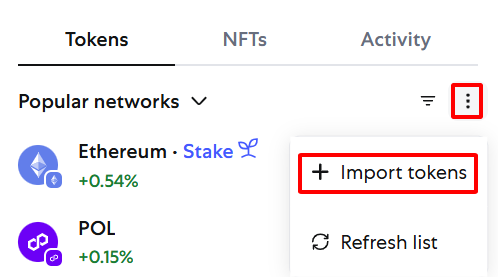
- Click the three dots in MetaMask → choose Import Token.
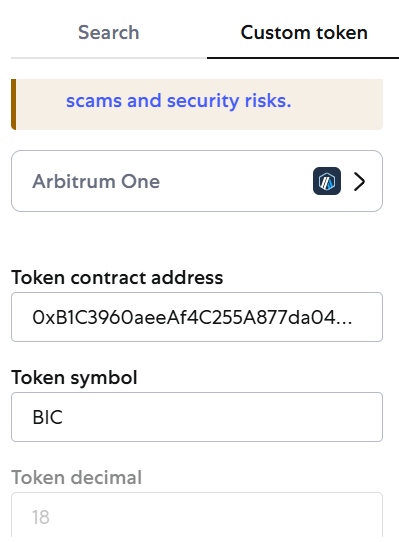
- Select Custom Token, enter the contract address:
0xB1C3960aeeAf4C255A877da04b06487BBa698386→ click Next. - Click Import to complete adding $BIC to your MetaMask wallet.
💰 Buy $BIC
- Make sure you have ETH on the Arbitrum network.
- Visit: https://swap.bictoken.global.
- Click Connect Wallet → choose MetaMask → click Connect.
- Enter your BIC (beta) wallet address.
- Enter the amount of ETH to swap → the system calculates the $BIC amount → click Swap.
- When prompted, confirm the transaction → click Confirm.
- Once successful, the $BIC will be transferred to your BIC (beta) wallet.
🔹 Note:
– Make sure the contract address is entered 100% accurately to properly display the token.
– If your transaction doesn’t show up, you can check under the Transaction History tab in your wallet.