
Note: The chat feature on BIC Group does not yet support push notifications on mobile when the app is in the background or closed. This feature will be added later. Until then, we recommend that you turn on email notifications so that you do not miss messages.
What this article covers
This article explains how to turn on, turn off, and customize notifications for the chat feature on BIC Group. You can get notifications by email or on your phone, and you can add mention keywords. You can also change the settings for each channel and mute channels that you do not need to follow.
The steps are for the mobile app. Settings that are available only on a computer are in sections 7 and 8.
When to use this article
- You do not want to miss important messages.
- You get too many notifications from a channel or conversation.
- You want a notification when someone mentions a keyword, such as the name of your team.
- You do not get notifications and need to check your settings.
How to do it
1. Open chat notification settings
Purpose: go to the page that has all chat notification settings.
- Tap your “profile picture” → Settings & privacy → Notifications.
- Scroll to the bottom of the page and find Chat setting.
- In the section that you want to change, tap Edit, make your changes, and then tap Save.
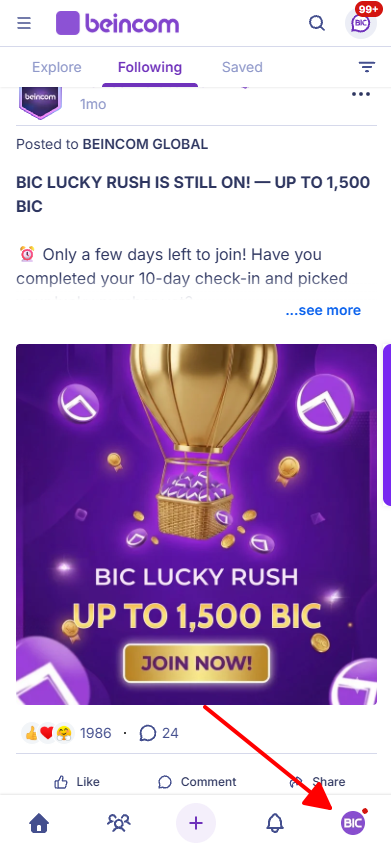
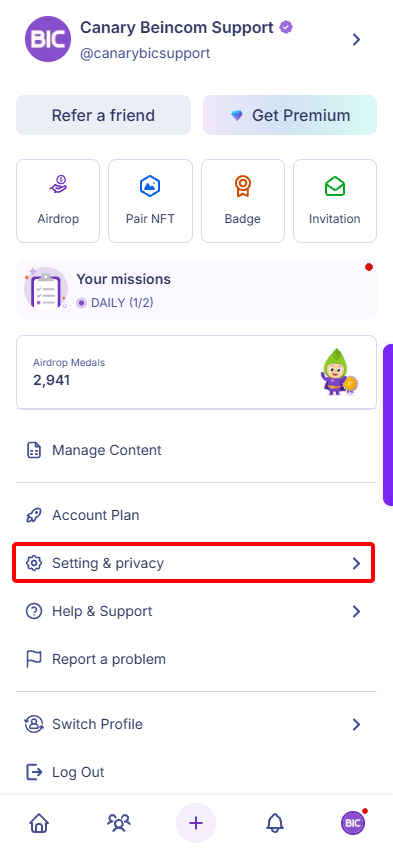
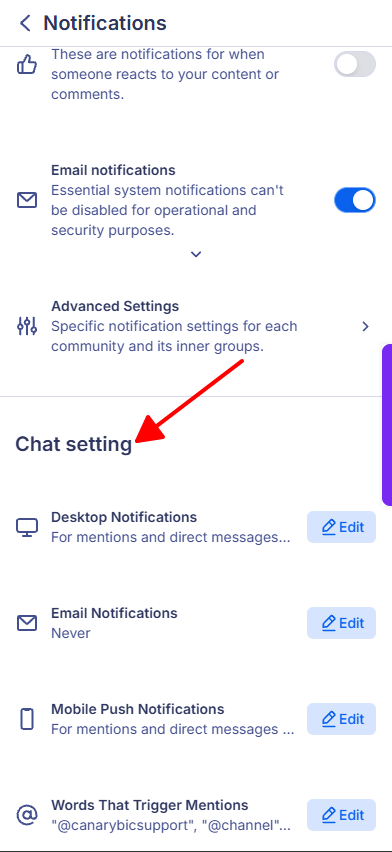
Result: these settings apply to all channels and conversations, except channels that have their own settings (see section 5).
2. Turn email notifications on or off
Purpose: get an email about important messages when you are not using the app.
- In Chat setting, tap Edit in the Email notifications section.
- Select one of the two options below, and then tap Save.
| Option | Description |
|---|---|
| Immediately | You get an email when you receive a direct message or a message that mentions you |
| Never | You do not get emails |
Result: emails are sent only when you are offline or have been away for more than 5 minutes. Muted channels do not send emails.
3. Turn mobile notifications on or off
Purpose: choose which messages send you a notification in the app.
- In Chat setting, tap Edit in the Mobile notifications section.
- Select a notification level from the table below.
- In Trigger notifications when, select the status in which you want to get notifications.
- Tap Save.
| Notification level | Description |
|---|---|
| For all activity | You get a notification for every new message |
| Only for mentions and direct messages (default) | You get a notification only when someone mentions you or sends you a direct message |
| Never | You do not get notifications |
Result: when the app is open, new messages appear as a card at the top of the screen. Tap the card to open the message, or swipe up to close it.
4. Add mention keywords
Purpose: get a notification when a message contains a keyword that is important to you, in addition to your @username.
- In Chat settings, tap Edit in the Keywords that trigger mentions section.
- Turn notifications for @all, @channel, and @here on or off.
- Enter your own keywords, for example @support or @team.a.
- Tap Save.
Result: messages that contain these keywords count as mentions of you.
5. Change notification settings for one channel
Purpose: give one channel different settings from your general settings. For example, a community announcement channel can notify you about every message, while other channels notify you only when someone mentions you.
- Open the channel or group chat that you want to change.
- Tap the channel name at the top of the screen, and then select Notification Preferences.
- Select a notification level for this channel, ignore @all, @channel, and @here, or mute the channel.
- Save your changes.
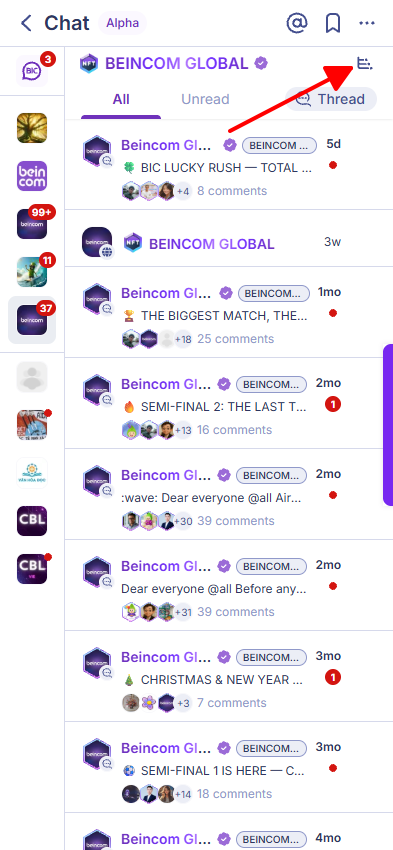
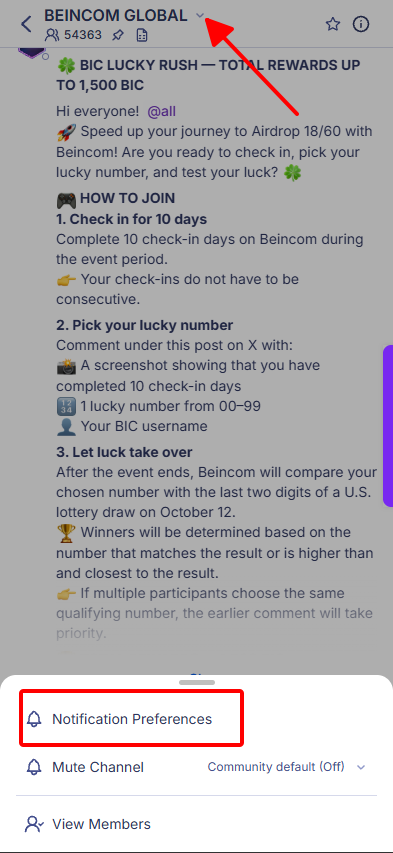
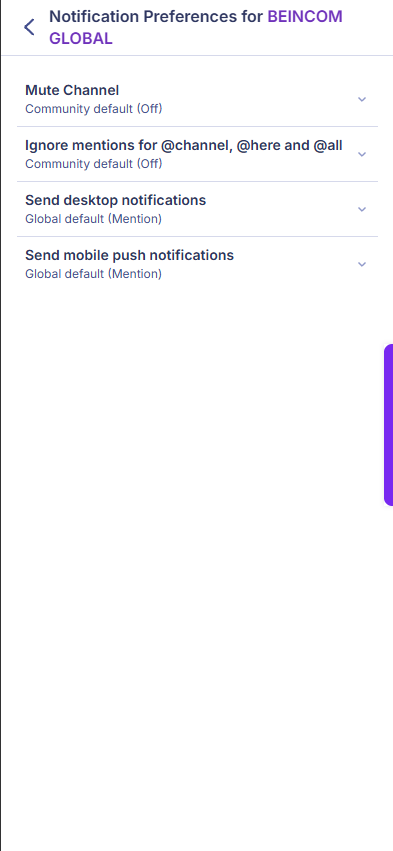
Result: the settings of the channel take priority over your general settings.
6. Mute a channel or conversation
Purpose: stop getting notifications from a channel or conversation. You can still read and send messages as usual.
- In the channel list, tap the … button of the channel → Mute Channel.
- Select one of the three options below.
| Option | Description |
|---|---|
| Community default | The channel follows the setting of the whole community (you can currently change this setting only on a computer, see section 8) |
| On | The channel is muted and you do not get notifications |
| Off | The channel is not muted and you get notifications as usual |
For a direct message or group chat, tap the … button of the conversation, and then turn on the mute switch.
Result: the channel name looks faded and shows a crossed-out bell icon. The channel still shows a number when someone mentions you.
7. Turn on browser notifications (computer)
Purpose: see notifications on your screen when you use chat in Chrome, Edge, Firefox, or Safari.
- In Chat setting, click Edit in the Desktop Notifications section.
- Select a notification level, turn the notification sound on or off, and choose a sound. Click Preview to hear the sound first.
- Click Save.
- When your browser asks for permission to show notifications, click Allow.
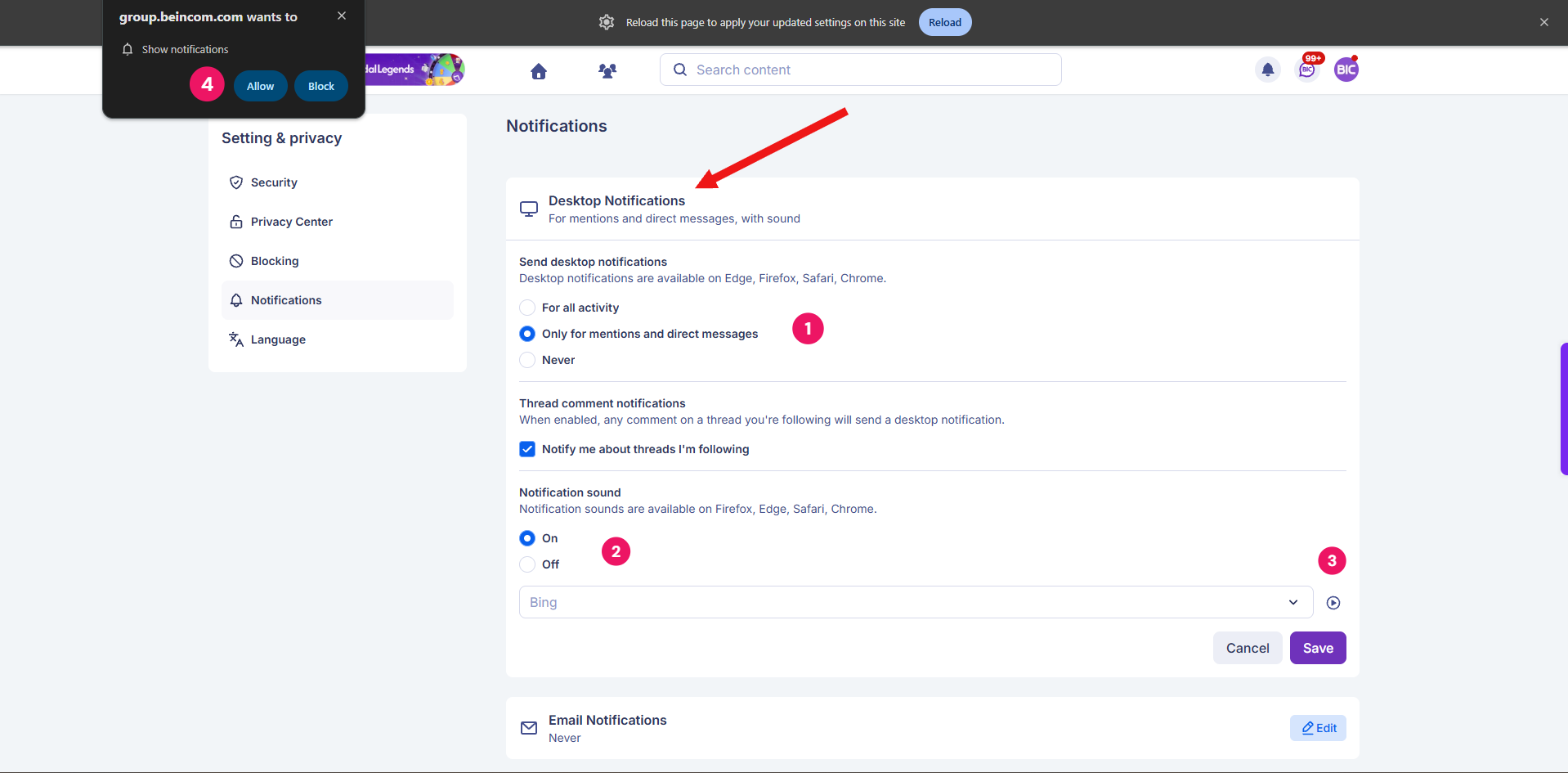
Result: notifications appear in the corner of your screen. Click a notification to open the channel that has the new message.
8. Turn off notifications for a whole community (computer)
Purpose: turn off notifications for all channels in a community at the same time.
- In the chat sidebar, click the ⋯ button next to the community name → Mute Community.
- To get notifications again, click the ⋯ button → Unmute Community.
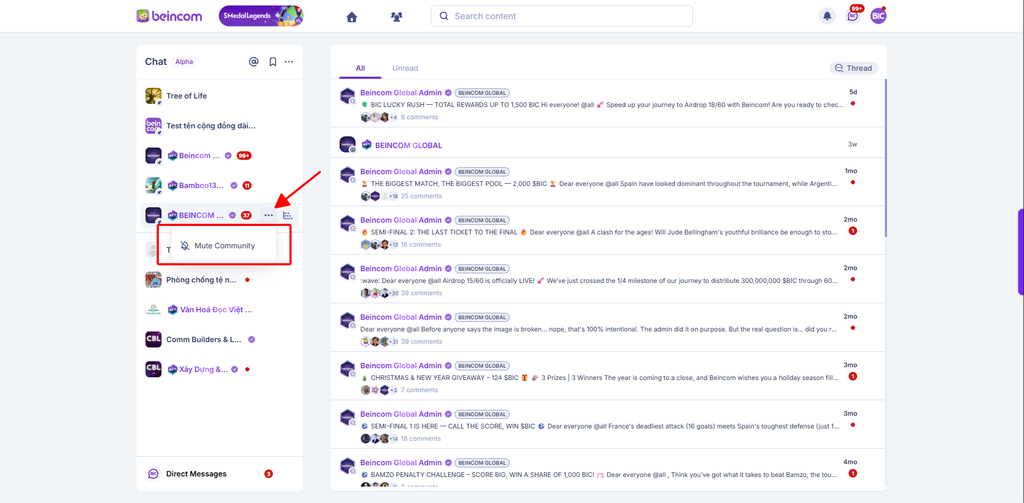
Result: channels that are set to Community default stop sending notifications. Channels that have their own settings do not change. This setting also applies when you use the mobile app.
Important notes
- Notification settings are shared with BIC Chat. A change in one app also applies to the other app.
- Chat push notifications do not work yet when the app is in the background or closed. Other BIC Group notifications, such as posts and comments, work as usual.
- When you mute a channel, On means that you do not get notifications.
- Mention keywords can contain only letters without accent marks, numbers, and dots. Keywords with accent marks cannot be saved.
- Messages that you send yourself do not create notifications.
Not getting notifications?
Check the following items in order:
- The app is in the background or closed: this is a current limitation. Turn on email notifications (see section 2).
- You are already viewing the channel that has the new message: no notification appears in this case.
- The notification level is Never, or it is set to mentions only and the message does not mention you.
- The channel is muted, either by itself or through the community setting.
- On a computer: your browser does not allow notifications, or your status is Do Not Disturb.
Frequently asked questions
Why does one channel still send notifications after I turned off community notifications?
That channel has its own setting. Open Mute channel for that channel and select Community default.
Why do I still see a number on a muted channel?
The number shows how many times someone mentioned you. Muted channels still count mentions.
Why can I not save a mention keyword?
Remove any accent marks and spaces. Use only letters without accent marks, numbers, and dots.
On a computer, why do I get the same notification twice, or get notifications while I am viewing the channel?
You have more than one BIC Group tab open. Each tab shows its own notifications, so keep only one tab open.
On a computer, why can I not hear the notification sound?
Check the notification permission in your browser and the sound switch in section 7.
Need more help?
If you still have problems, send your feedback to the Beincom team by following the steps in How to report bugs or suggest features for BIC Apps.