
What this article covers
This article explains how to save important messages in the chat feature on BIC Group. It also explains how to open your saved messages list, go to the original message, and unsave a message that you no longer need.
The steps are for the mobile app. Differences on a computer are noted in the steps.
When to use this article
- You want to keep important information so that you can read it again later.
- You need to find a message again without scrolling through the whole conversation.
- You want to view messages that you saved on BIC Chat in the past.
- You want to remove messages that you no longer need from your saved messages list.
How to do it
1. Save a message
Purpose: keep an important message so that you can read it again later.
- Open the channel or conversation that has the message.
- Press and hold the message. On a computer, move your mouse pointer over the message or click the … button.
- Select Save.
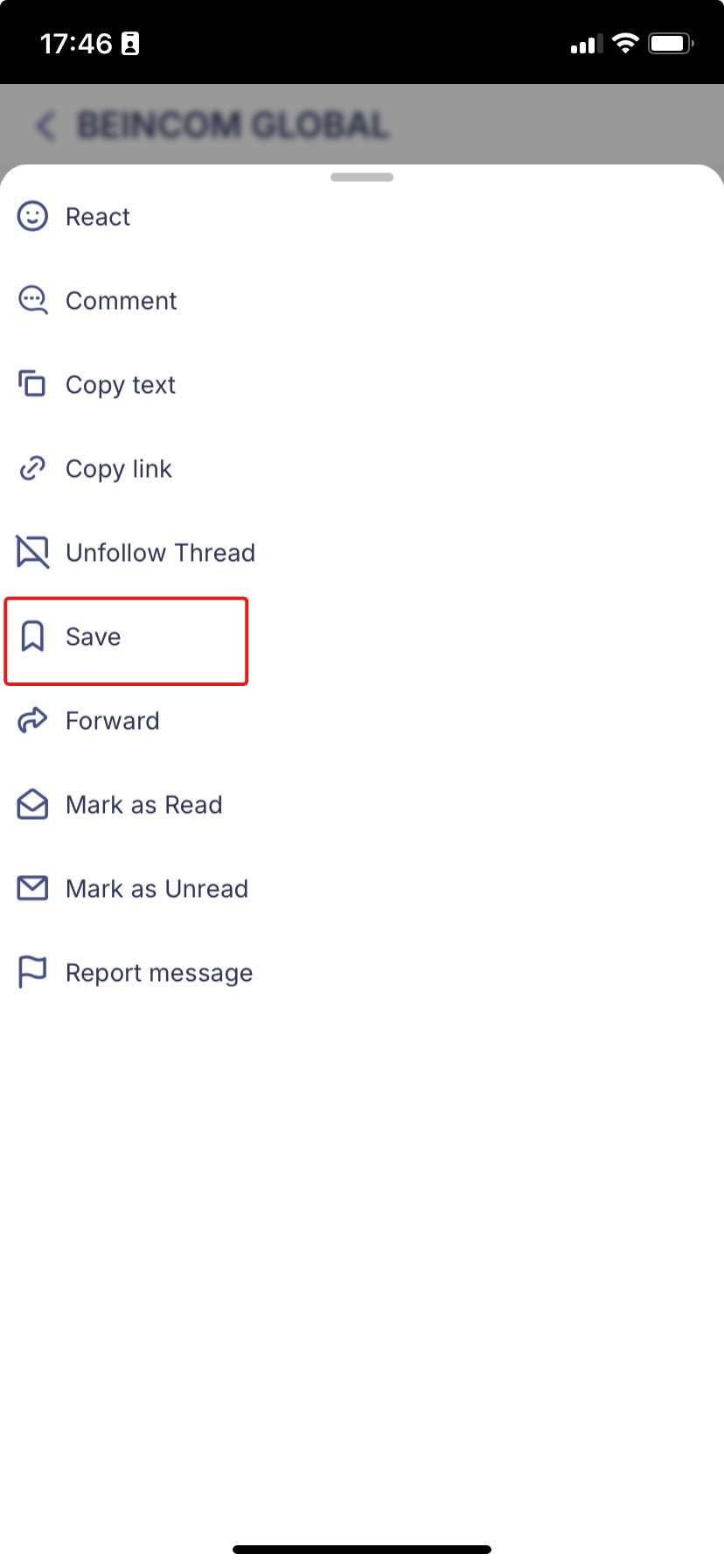
Result: the message is added to your saved messages list.
2. View your saved messages
Purpose: see the messages that you saved in one place.
- Select the Chat icon on the navigation bar to open Chat Home.
- Select the Saved icon.
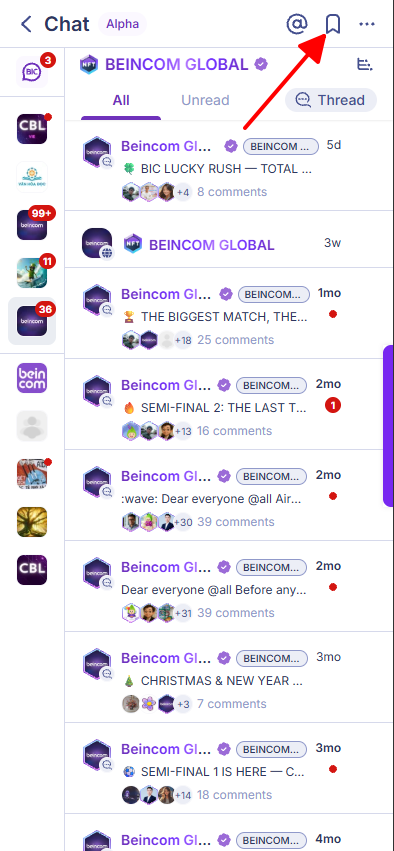
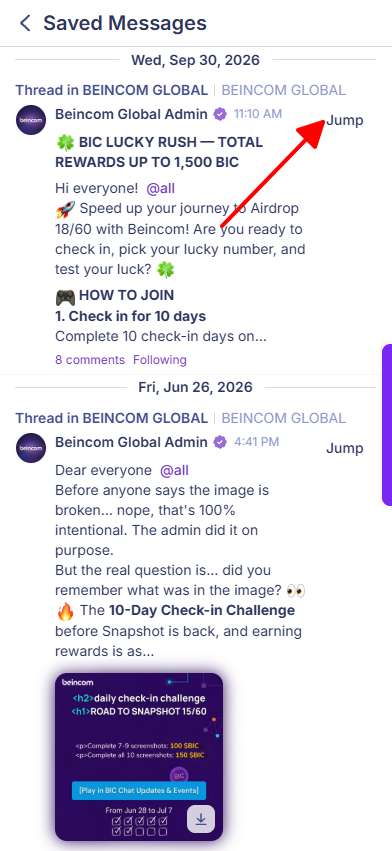
Result: your saved messages list opens. The list is sorted by the time each message was sent.
3. Go to the original message
Purpose: see the message in its original channel or conversation.
- In your saved messages list, find the message that you want to see.
- Select Jump.
Result: the app takes you to that message in its channel or conversation.
4. Unsave a message
Purpose: remove a message from your list when you no longer need it.
- Open the message that you want to unsave. To find it quickly, select Jump in your saved messages list.
- Press and hold the message. On a computer, move your mouse pointer over the message.
- Select Unsave.
Result: the message is no longer in your saved messages list. The original message stays in the conversation.
Important notes
- Saved messages are shared with BIC Chat. If you save or unsave a message in one app, the change also applies to the other app.
- The list is sorted by the time each message was sent, not by the time you saved it.
Cannot find a saved message?
Check the following items in order:
- The message that you just saved is not at the top of the list: the list is sorted by the time each message was sent. Look for the message by the time it was sent.
- You do not see the Saved icon on your phone: open Chat Home first (see section 2).
- You do not see the Saved icon on a computer: the icon is at the top of the chat sidebar.
- The message was unsaved on BIC Group or BIC Chat: open the message again and select Save.
Frequently asked questions
Are the messages that I saved on BIC Chat still available?
Yes. Saved messages are shared between BIC Chat and the chat feature on BIC Group, so you can view them in both places.
Does unsaving a message delete it?
No. The message is only removed from your saved messages list. It stays in the conversation.
What is the difference between saving and pinning a message?
Saved messages are in your saved messages list. Pinned messages are available from the pin icon at the top of the channel. In a community channel, only channel admins or people with permission can pin messages.
Need more help?
If you still have problems, send your feedback to the Beincom team by following the steps in How to report bugs or suggest features for BIC Apps.