
What this article covers
A message request is your first message to someone who reviews messages before chatting. This applies when the person is not your friend and has never chatted with you.
This article explains how to send and cancel message requests. It also explains how to view, accept, or ignore the requests that you receive in the chat feature on BIC Group.
The steps are for the mobile app.
When to use this article
- You want to message someone, but you see the Send request button instead of the message box.
- You want to cancel a message request that you sent.
- You want to know who wants to chat with you.
- You want to accept or ignore messages from people who are not your friends.
How to do it
1. Send a message request
Purpose: start a chat with someone who reviews messages before chatting.
- In the Direct Messages section, select the + button.
- Search for the person by name or username.
- Select the person to open the conversation.
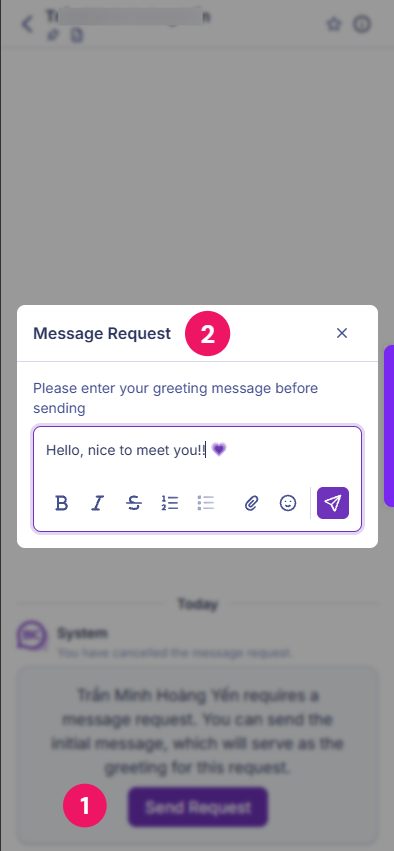
- Select Send message request in place of the message box.
- Enter a greeting with at least 25 characters.
- Select Send.
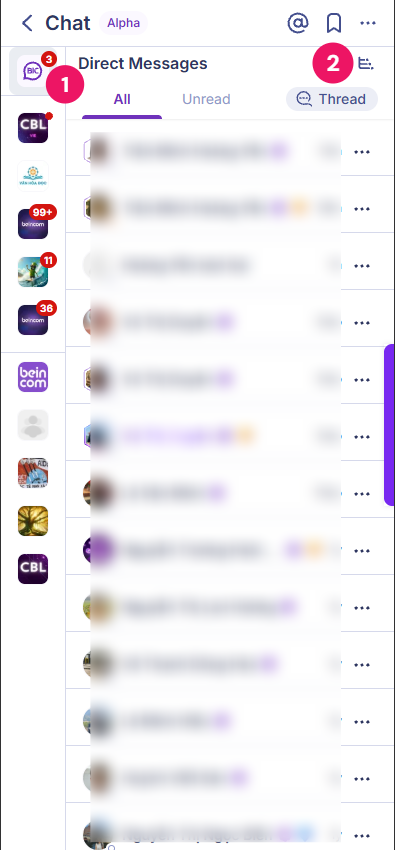
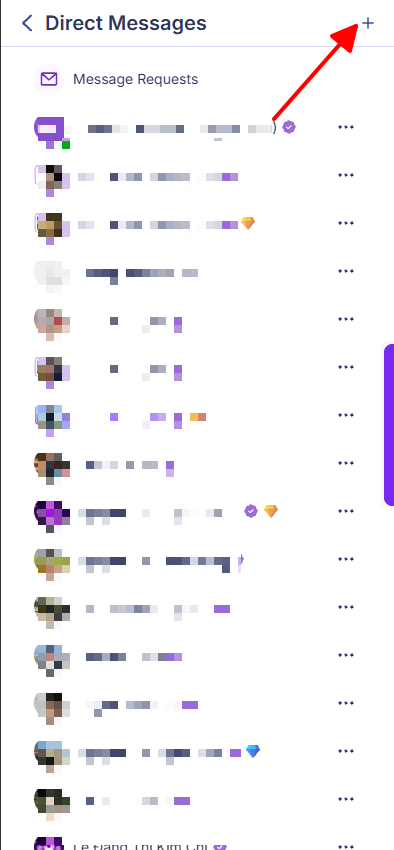
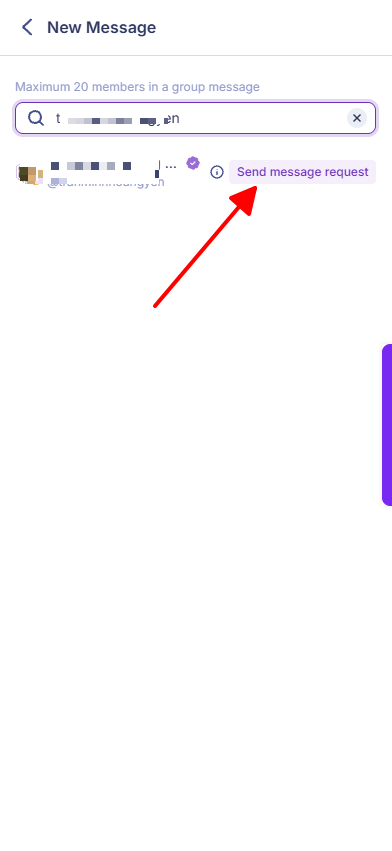
Result: your request is in the Sent tab of the Message requests section. When the other person accepts it, you can chat as usual.
2. Cancel a request that you sent
Purpose: take back a request when you no longer want to chat with that person.
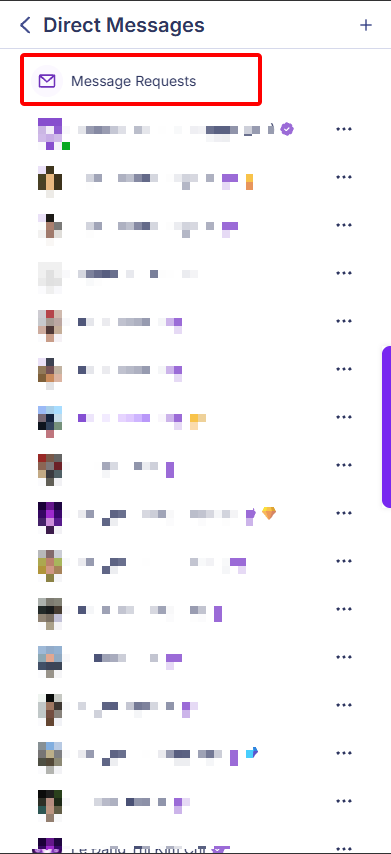
- Open the Message Requests section at the top of your message list.
- Select the Sent tab.
- Next to the request, select Cancel Request.
Result: your message request is cancelled.
3. View the message requests that you receive
Purpose: see who wants to chat with you.
- Open the Message Requests section at the top of your message list.
- Select the Pending tab to see the requests that you have not answered.
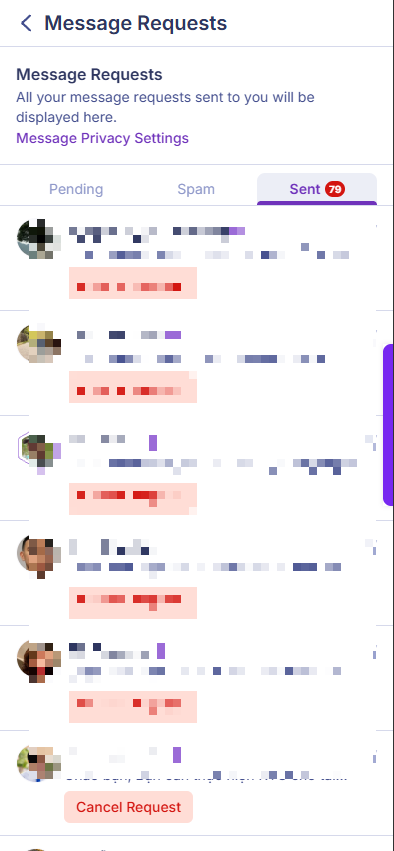
| Tab | Description |
|---|---|
| Pending | Requests that you received and have not answered |
| Spam | Requests that the same person sent many times, for example after you ignored the first request |
| Sent | Requests that you sent to other people |
Result: the requests in the Pending tab appear.
4. Accept or ignore a request
Purpose: decide whether you want to chat with the sender.
- In the Pending tab, open the request.
- Select one of the options below.
| Option | Description |
|---|---|
| Accept | You and the sender can chat as usual |
| Ignore | The request is not accepted. After that, you can select Block if you do not want this person to contact you again |
You can also reply to the message in the request. A reply counts as accepting the request.
Result: after you accept the request, you can chat with the sender like in any other conversation.
Important notes
- Message requests appear only when the two people are not friends and have never chatted. The receiver must also select Manual Acceptance in their direct message privacy settings.
- The greeting in a request must have at least 25 characters.
- Until the request is accepted, neither person can reply in a thread.
- If you change your direct message privacy setting to Everyone, all pending requests are accepted.
Cannot send a message request?
Check the following items in order:
- You cannot send the request: your greeting has fewer than 25 characters.
- You sent a request, but you cannot reply in a thread: wait until the other person accepts your request.
- You cannot find the person: check the name or username again. If you still cannot find the person, they may not accept new messages at the moment.
Frequently asked questions
Why do I need to send a request before I can message someone?
You and that person are not friends and have never chatted, and that person reviews messages before chatting. When they accept your request, you can chat as usual.
How can I let people message me without sending a request?
Change your direct message privacy setting to Everyone. To open this setting quickly, select Message privacy settings at the top of the Message requests section. For more information, see How to set privacy for direct messages.
Does replying to a message request count as accepting it?
Yes. When you reply, the request is accepted, and you can chat as usual.
Can I cancel a request that I sent?
Yes. Select Cancel request in the Sent tab (see section 2).
Can I send a request again after it was ignored?
Yes. When your request is ignored, the Send request button appears again in the conversation, so you can send a new request. The old request is removed from the Sent tab.
Need more help?
If you still have problems, send your feedback to the Beincom team by following the steps in How to report bugs or suggest features for BIC Apps.